Summary
- 4 ways to get notified — browser, in-app, push, and email; customize each channel independently.
- Default settings — new members get all notifications; customize to receive only your regional Superdeals.
- Step-by-step setup — desktop, iOS, and Android configuration
- Troubleshooting guide — fix push notifications, spam emails, and browser permission issues
How notifications work?
Notifications help you stay informed about the offers that matters to you. You can customize exactly what you’re notified about, when you receive notifications, and how they’re delivered.
ATC platform delivers notifications through four distinct channels that can be customized independently. You can mix and match alerts from these channels based on your preferences.
- Browser notifications. Automated visual indications on desktop/mobile web platform view, whenever new content is posted in spaces.
- Mobile in-app notifications. New post alerts plus system notifications and messages.
- Mobile push notifications. Push notifications for new posts—available in Android and iOS mobile apps, as well as in Progressive Web App (PWA).
- Email Notifications. Short real-time email messages about newly published posts, plus weekly digests (sent every Thursday).
When you first join ATC, you’ll receive notifications for all spaces, and all offers that are published there. You have full control on notifications. For example, you can opt for receiving in-app notifications while disabling emails, or you can opt out from the spaces you are not interested in.
The system maintains notification history synchronized across all platforms, with read/unread status tracked per notification and badge counts updating in real-time.
Once you receive an alert, learn how to book these time-sensitive deals quickly to secure the best prices.
Desktop notifications
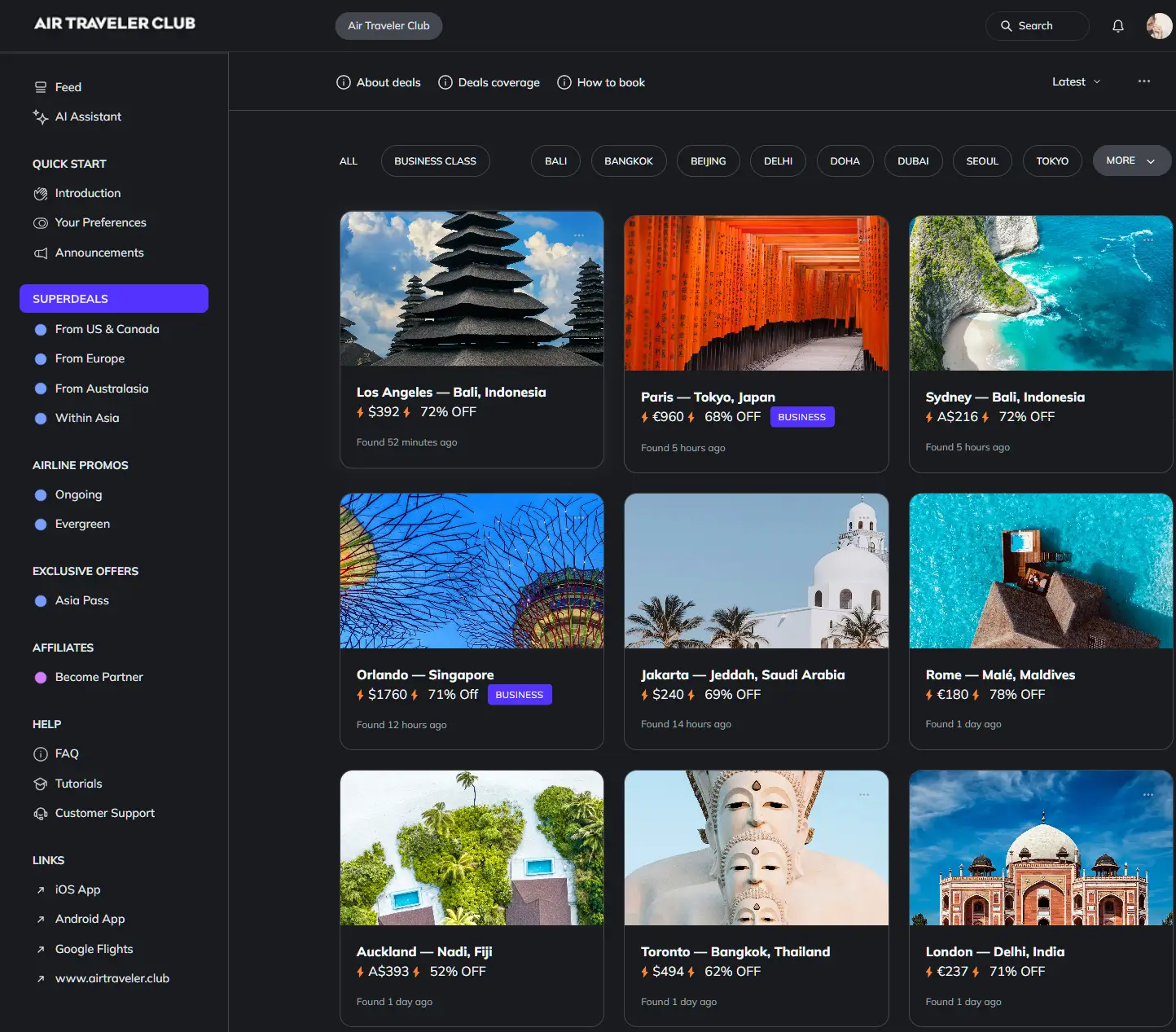
Spaces are channels or topic areas within ATC. Desktop activity notifications keep you informed about new posts in spaces. In the left sidebar, you get automated visual indications on space whenever you have unread posts:

In the top right corner, there’s a section for in-app notifications—which we typically use to send system messages and, occasionally, messages from the platform admin:

For Superdeals, we recommend enabling notifications for at least one location-based space (such as From US & Canada) and the Within Asia space. This ensures you receive instant alerts for flight deals from your region and helps you discover local deals if you’re planning to travel around Asia.
Mobile app notifications
On the mobile app, we show notifications in three different ways:
- Activity notifications. When there are unread posts in the space, a numbered badge (representing the number of unread messages) will appear on the Spaces tab.
- Mobile in-app notifications. When new posts or messages are awaiting your attention, the Notifications🔔 icon (located at the bottom of the screen) displays a badge with a numbered count. They appear even when the app is closed, but require one-time permission when you first install the app.
- Mobile push notifications. Sent directly to your mobile device, providing you with real-time updates about new posts. You’ll receive timely information even when you’re not actively using the app—critical when flash sales can sell out within hours of being posted.
Managing notifications
Customizing your notification settings helps you stay connected and receive the most important offers without feeling overwhelmed. Taking 5 minutes to adjust your settings now saves hours of notification management later.
Understanding how to read and verify Superdeals ensures you can quickly assess which alerts warrant immediate action versus which you can review later.
You can set the notification preferences directly from the space:

… or you can manage notifications for all spaces from your Account settings page:
- Click on your profile picture in the upper corner.
- Select Notifications🔔 to open your notification settings.

- Tailor your notifications to receive updates only from the areas that interest you most. As ATC does not have community features yet, you can focus on New posts section.
- Click Save changes.


You can apply the same notification preference to all spaces by selecting the checkbox for the corresponding column next to Apply to all spaces.
You can opt out of all notifications by clicking Turn off all notifications.
Mobile notifications will only appear in the settings if you have downloaded and logged into the mobile app.
Here’s how to manage notifications from your mobile app:
- Tap Notifications🔔 on the control bar.
- In the upper-left corner, tap Settings⚙️ and then tap Push notifications or In-app notifications.
- Tap the toggle next to the option to enable or disable notification for each option.
Setting up email digests
Weekly digests provide a consolidated summary of ATC activity delivered every Thursday at 9 AM Pacific, perfect for staying informed without real-time email volume. The digest includes personalized content based on your activity and interests, highlights of popular posts/offers from spaces you follow, and direct links to quickly check the offer.
To enable/disable the weekly digest, go to Settings → Notifications, scroll to Email Digest, and toggle it on/off.
While digests are convenient, remember that the best Superdeals with 60-80% savings often require immediate action, making real-time alerts more valuable for deal hunters.
Troubleshooting
Notifications not appearing at all
Check your account notification settings first. Navigate to Settings → Notifications and verify notifications are enabled for the activities you want to track. Customize them by notification type (in-app, email, browser, mobile)—ensure your preferred delivery channel is toggled on. Settings must be saved after changes.
For email notifications, check that your email address is correct in your profile and look in spam/junk folders. For mobile notifications, verify you granted permission when first installing the app—go to your phone’s Settings → Notifications and confirm Allow Notifications is enabled. For browser notifications, check that you clicked Allow when prompted and that your browser permissions aren’t blocking the site.
Mobile push notifications not working (iOS)
Enable device-level permissions. Open your iPhone Settings → Notifications , toggle on Allow Notifications, select Banners or Alerts for notification style, enable Badge App Icon to show notification counts, and enable Sounds if desired.
Check Do Not Disturb and Focus modes. Verify Do Not Disturb or any Focus mode is deactivated by going to Settings → Focus and checking all modes are off. These features block all notifications system-wide.
Enable Background App Refresh. Go to Settings → General → Background App Refresh, ensure it’s enabled for our app—this is required for timely notification delivery.
Avoid force-quitting the app frequently. If you habitually swipe away the app from your app switcher, iOS interprets this as you not wanting background activity. After force-closing, you must manually launch the app once to resume notifications. After any iPhone restart, manually open the app once to re-enable background processing.
Mobile push notifications not working (Android)
Grant app notification permissions. Go to Settings → Apps → Circle → Notifications and ensure Show notifications is enabled. Check that App icon badges is turned on.
Disable battery optimization. Android aggressively kills background apps to save battery. Go to Settings → Battery → Battery optimization, find Circle app, and set to Don’t optimize.
Configure manufacturer-specific settings. Samsung devices require Settings → Apps → Circle → Battery → Allow background activity. Xiaomi/MIUI devices need Settings → Apps → Manage apps → Circle → Autostart enabled. Huawei devices require Settings → Apps → Circle → Battery → App launch set to manual management. These settings prevent your phone from killing the app in the background.
Email notifications not being received
Check spam and junk folders. If found in spam, mark as Not Spam and add the sender to your contacts. Create an email filter to always move ATC emails to your inbox.
Toggle email notifications off and on. Go to Settings → Notifications, toggle email notifications OFF, wait 10 seconds, then toggle back ON. Save changes explicitly. This can reset stuck notification states.
Verify your email address is correct. Check your ATC profile settings to ensure your email address is current and has no typos.
Confirm your inbox isn’t full and your email provider isn’t blocking automated emails.
Browser notifications not working
Enable notifications at your operating system level. On Windows, go to Settings → System → Notifications and toggle ON for your browser. On Mac, go to System Settings → Notifications → [Your Browser] → Allow notifications → Enable Banners or Alerts.
Check browser-level notification settings. For Chrome, go to Settings → Privacy and security → Site Settings → Notifications and ensure notifications aren’t blocked globally. Verify that plus.airtraveler.club URL is in the Allowed list, not Blocked. For Firefox, go to Settings → Privacy & Security → Permissions → Notifications and check your community is allowed. For Safari, go to Safari → Settings for → Notifications → Allow.
Grant website-specific permission. Click the lock or info icon in your browser’s address bar when on plus.airtraveler.club, check that Notifications permission is set to Allow (not Ask or Block), and refresh the page if you changed the setting.
Disable Do Not Disturb mode. On Windows, click the time/date in the taskbar and select End Focus session. On Mac, click the moon icon in the menu bar to disable. These modes silence all notifications system-wide.
Important browser limitations:
– Firefox cannot send push notifications when the website is inactive—you must be actively viewing ATC to receive notifications, significantly limiting usefulness.
– Safari iOS 17.4+ removed Home Screen web app support for EU users, blocking browser notifications on mobile.
– Chrome and Edge provide the most reliable browser notification experience with background support.
Still experiencing issues?
If you’ve tried all relevant troubleshooting steps above and notifications still aren’t working, document your specific issue with screenshots of your settings, note your operating system and version, browser or app version, and exact steps that reproduce the problem. Contact our customer support with this information for personalized assistance.